Power Automate for Excel: Actions, Patterns, and Limits (2026)
Power Automate for Excel: the connector actions, copy-ready flow patterns, the format-as-a-Table rule, and the limits that break flows at scale.

In this article · 12 sections
Most of the work people do in Excel is the same handful of moves on repeat: copy new rows in, look something up, update a status, send the sheet to someone. Power Automate does those moves for you, on a schedule or the moment a trigger fires, and it reads and writes the workbook without anyone opening it. A Microsoft Form logs straight into a tracker. A daily flow reads a table and emails the rows that need attention. A status change updates the right row by itself.
The single most common reason a first Excel flow fails is one rule: your data has to be formatted as an Excel Table, not just rows on a sheet. Get that right, plus two setup conditions, and the rest is mechanics. Four things stack up: the Table your data lives in, the connector actions that read and write it, the trigger that starts the flow (which, for Excel, comes from the source system, not from Excel itself), and an Office Script for anything the actions cannot do. This guide covers each, then the limits that are invisible in a 50-row test and only surface once the tracker is real.
Updated June 2026 against Microsoft’s current Excel Online (Business) connector documentation.
The one rule: format your data as a Table
Power Automate’s Excel actions read and write only named Excel Tables, not loose cell ranges. Before anything else, select your data and make it a table with Insert > Table (or Ctrl+T). If your data is just rows on a sheet, the connector cannot see it, and the most common first-flow error, “could not retrieve values,” is usually exactly this, per Microsoft’s troubleshooting note: no table, or a permissions problem on the file.
Two more conditions come with it:
- The file lives in OneDrive for Business or SharePoint, not on your PC. The Excel Online (Business) connector works on files in OneDrive for Business, SharePoint sites, and Microsoft 365 Groups. A workbook on your local drive is not reachable.
- Use Excel Online (Business), not the older Excel connectors. Avoid the legacy “Excel” connector and “Excel Online (OneDrive)” (which targets personal, consumer OneDrive accounts); for business files, build on Excel Online (Business).
Once your range is a Table in a cloud-stored workbook, every action below has something to point at.
Power Automate Excel actions: what each one does
These are the Excel Online (Business) actions you will actually use, from the connector reference:
| Action | What it does |
|---|---|
| List rows present in a table | Read the table; supports filter, order, and column selection |
| Add a row into a table | Append one new row |
| Get a row | Fetch a single row by a key column value |
| Update a row | Overwrite cells in a row matched by a key column |
| Delete a row | Remove a row matched by a key column |
| Create table / Create worksheet | Build a table or sheet inside a flow |
| Run script | Run an Office Script for anything the actions above cannot do |
There is also a single trigger, For a selected row, which lets a user run a flow on demand against a row they pick. Note the connector has no “when a row changes” trigger: row-change automation has to come from the source system (a new SharePoint item, a Form response, a Dataverse change), not from Excel itself. Most Excel flows start from one of those triggers and use these actions to do the work.
Two behaviors to internalize before you build:
- Key columns are how you target a row. Get, Update, and Delete all match on a key column plus a key value, and the key column name must match the header exactly (it is case-sensitive). If more than one row matches, only the first is updated or deleted.
- Update overwrites, it does not append. Update a row replaces the cells you supply and leaves blank ones alone. To add to an existing value, Get the row first, combine, then write it back.
In practice most flows only ever use List rows, Add a row, and Update a row; the rest are situational.
Four Excel flow patterns to build first
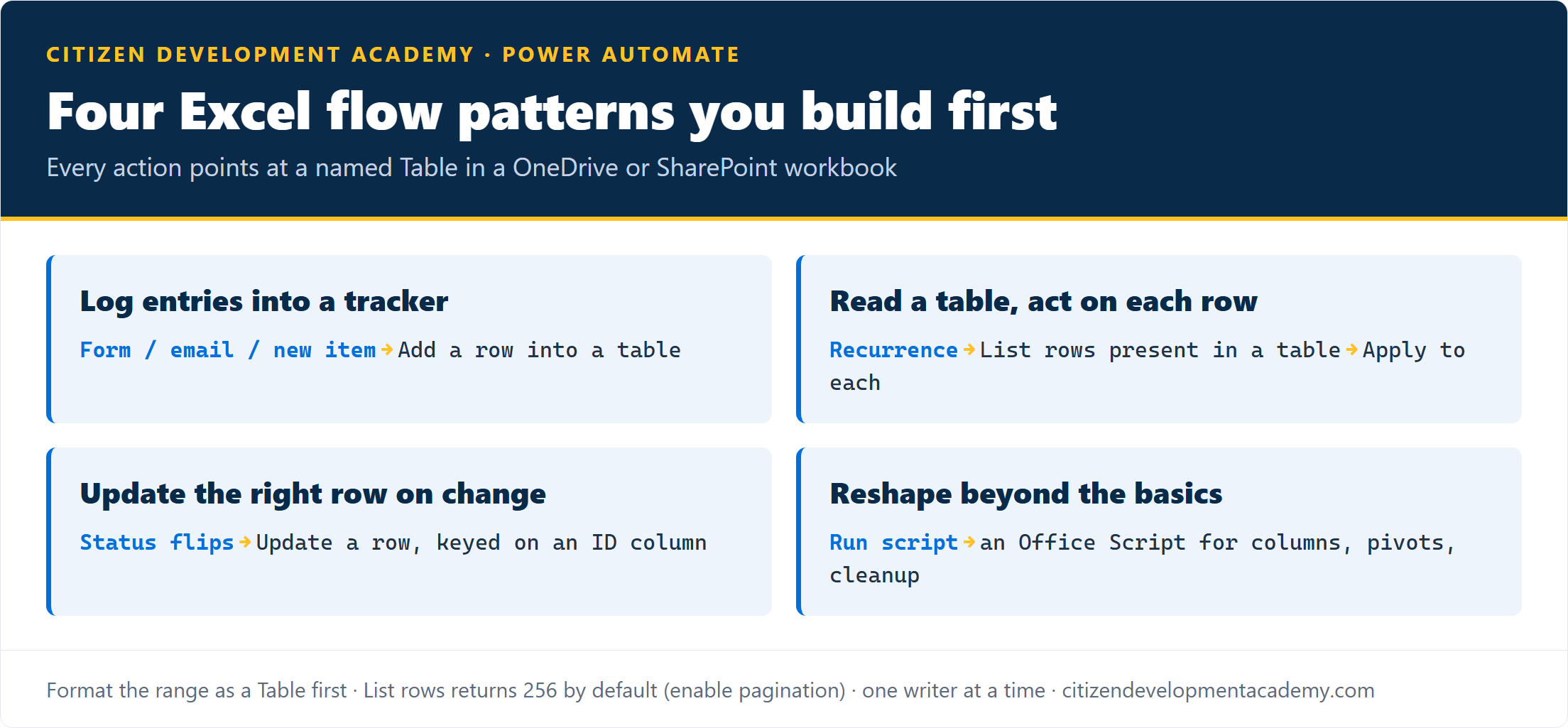
- Log new entries into a tracker. A Microsoft Form (or an email, or a new SharePoint item) triggers the flow, and Add a row into a table writes the response into your Excel tracker. The classic no-database tracker.
- Read a table and act on each row. A scheduled trigger runs List rows present in a table, then Apply to each loops the rows: email the owners of overdue items, post a Teams summary, or branch on a status column. This is the reporting and reminder workhorse.
- Update the right row when something changes. When a status flips elsewhere (an approval, a SharePoint change), Update a row keyed on an ID column writes the new value into the matching Excel row, no manual find-and-edit.
- Reshape with an Office Script. When you need to delete columns, build a pivot, reformat, or do multi-step cleanup the table actions cannot express, Run script calls an Office Script (covered next).
A concrete version of the first pattern: say you keep a Requests table with columns Title, Requestor, Status, and Date. A Microsoft Form triggers the flow, and Add a row into a table maps Title to the request summary, Requestor to the responder’s email, Status to the literal text “New”, and Date to the submission time. Later, when a request is approved elsewhere, Update a row keyed on a unique ID column flips that row’s Status to “Approved” without anyone opening the file.
For the date and number formatting that summaries always need, the formatDateTime guide covers the format strings; for filtering the table server-side, the same OData syntax in the Filter Query guide applies to List rows (for example, a Filter Query of Status eq 'Open' returns only the open rows).
When the actions are not enough: Office Scripts
Office Scripts are the Excel-side feature; the Run script action is the Power Automate connector that calls them. You record your steps in Excel once with the action recorder, and Power Automate replays them, the handoff these two are built for. Reach for this when you need to delete columns, format cells, build a PivotTable, or run a multi-step cleanup the table actions cannot express. A recorded script is plain TypeScript you can edit, for example a header-formatting step:
function main(workbook: ExcelScript.Workbook) {
  const sheet = workbook.getActiveWorksheet();
  sheet.getRange("A1:D1").getFormat().getFont().setBold(true);
}
Three things to know before you lean on it:
- It needs a business Microsoft 365 license. Office Scripts with Power Automate requires a business plan, not a personal one. (License is an Office Scripts prerequisite; the call limits below are Run script action limits.)
- There are call limits. Run script allows up to 3 calls per 10 seconds and up to 1,600 calls per day, per the connector reference, so it suits per-file or scheduled work, not high-frequency per-row loops.
- It is not available in sovereign clouds (GCC, GCC High, DoD), also per the connector reference.
The rule of thumb: stay on the basic table actions for reading and writing rows; reach for an Office Script when you are reshaping the sheet itself.
The limits that quietly break Excel flows
Most Excel flows work in testing and break in production when the workbook grows or two things write at once. The thresholds below are Microsoft’s, documented in the connector reference and verified there in June 2026; the symptoms are what you see when each one bites.
| Limit | Threshold | Symptom when hit | What to do |
|---|---|---|---|
| Rows returned | 256 by default | Flow silently processes only the first 256 rows | Turn on pagination in the action settings |
| Concurrent writes | One writer at a time | Merge conflicts, lost edits | Route writes through one flow; do not edit the file by hand while it runs |
| Write propagation | Up to about 30 seconds | A row you just wrote is not there when you read it back | Do not read-after-write in the same run |
| File lock | Up to about 6 minutes after last use | An action fails because the file is still locked | Space out flows that touch the same file |
| File size | 25 MB maximum | The connector will not open the workbook | Split the data, or move to a list or Dataverse |
| Query column names | Alphanumeric only | Filter, Order By, or Select fail; number-only headers break Update | Rename columns; avoid number-only headers |
The two that catch people most often: the 256-row default (a flow that worked on a small table silently drops rows once the table grows past 256, until you turn on pagination), and one writer at a time (a flow writing while someone has the file open in Excel produces merge conflicts that are hard to trace).
None of these are reasons to avoid Excel automation; they are the reasons a flow that looked done starts dropping rows three months later. They do, though, mark where Excel is the wrong tool:
- Many people or flows writing at once, or high-frequency per-row writes: the one-writer rule will bite.
- More than 25 MB, or a heavy, formula-driven workbook: size and recalculation limits will bite.
- Data that several systems need to read and write as a system of record: that is a database job.
When any of those describe your case, a SharePoint list or Dataverse is the better home. They are not limit-free (a SharePoint list trades Excel’s row cap for its own 5,000-item view threshold), but they are built for concurrent, higher-volume work in a way a spreadsheet is not.
FAQ
Why can’t Power Automate see my Excel data?
Almost always because the data is not formatted as a Table. The Excel actions operate on named tables, not loose ranges, so select your data and use Insert > Table (Ctrl+T) first. The other common cause is the file being on your local PC instead of OneDrive for Business or SharePoint, or a permissions issue on the file.
How do I use Power Automate to read an Excel file?
Format the range as a Table, store the file in OneDrive for Business or SharePoint, then use the Excel Online (Business) connector’s List rows present in a table action to read it and Add a row into a table to write to it. Point each action at the file and table, and turn on pagination if the table has more than 256 rows.
How do I get more than 256 rows from an Excel table?
List rows present in a table returns 256 rows by default. Open the action’s settings and turn on pagination, then set a threshold at or above your row count. Pagination raises the 256 default but is itself bounded, so for very large tables, filter server-side first with a Filter Query rather than pulling everything. Without pagination, the flow processes only the first 256 rows and gives no error.
Do I need an Excel Online Business license to use Office Scripts in a flow?
Yes. The Run script action that calls Office Scripts requires a business Microsoft 365 license, and it is limited to 3 calls per 10 seconds and 1,600 per day. The basic table actions (add, list, update, delete a row) do not require Office Scripts at all.
Can two flows write to the same Excel file at once?
No. The Excel connector does not support simultaneous modifications, and concurrent writes (or a flow writing while someone has the file open) cause merge conflicts. Route writes through a single flow, or move to Dataverse or a SharePoint list if many processes need to write at the same time.
Should I use Excel or a SharePoint list for automation?
Excel is the right home when the data is already a spreadsheet people maintain by hand and the volume is modest. For higher volume, many concurrent writers, or richer data types, a SharePoint list (see Power Automate for SharePoint) avoids the table-locking and 256-row limits, in exchange for its own 5,000-item view threshold.
Stay in the loop
Get new posts delivered to your inbox. No spam, unsubscribe anytime.
Related articles
Free Power Automate Training: Where to Actually Start in 2026
Genuinely free Power Automate training: official Microsoft Learn paths, free hands-on practice, free guides, plus an honest note on where free stops.
Power Automate for Teams: Triggers, Actions, and Patterns (2026)
Power Automate for Microsoft Teams: posting messages and approval cards, the triggers that start a flow, copy-ready patterns, and the limits to plan around.
Power Automate for Outlook: Triggers, Actions, and Patterns (2026)
Power Automate for Outlook: the email and calendar triggers and actions that matter, copy-ready flow patterns, and the limits that quietly break inbox flows.