Power Automate for Outlook: Triggers, Actions, and Patterns (2026)
Power Automate for Outlook: the email and calendar triggers and actions that matter, copy-ready flow patterns, and the limits that quietly break inbox flows.

In this article · 10 sections
Outlook is where most work gets coordinated: the email that needs filing, the attachment someone needs in SharePoint, the flagged message that is really a task, the calendar that drives reminders. Power Automate’s Office 365 Outlook connector turns all of that into something a flow can act on, so a flow handles the repeatable inbox-triage and calendar steps, not the judgment calls.
Every Outlook flow has one trigger (the email or calendar event that starts it) and one or more actions, across the connector’s two domains, mail and calendar. This guide covers the triggers and actions worth knowing, the flow patterns you will build first, and the limits that quietly break inbox flows at real volume. If all you want is to send an email from a flow, the step-by-step send-an-email guide covers that one action in depth; this page is the wider connector.
Updated June 2026 against Microsoft’s current Office 365 Outlook connector documentation.
Outlook triggers: how a flow starts
Every Outlook flow starts from one of these events, drawn from the Office 365 Outlook connector reference:
| Trigger | Fires when |
|---|---|
| When a new email arrives (V3) | A message lands in a folder you choose (supports folder and property filters) |
| When a new email arrives in a shared mailbox (V2) | A message lands in a shared mailbox you have full access to (the supported shared-mailbox path) |
| When an email is flagged (V3) | You flag a message, the “this is actually a task” trigger |
| When an upcoming event is starting (V3) | A calendar event is about to begin, for prep and reminders |
Version suffixes (V2, V3, V4) are current as of June 2026; in the designer, pick the highest version offered.
Two behaviors to internalize before you build. These triggers poll on an interval that depends on your Power Automate plan, often a few minutes and up to an hour on lower tiers, rather than firing the instant mail arrives. And the shared-mailbox triggers need full mailbox access, not just “Send As” permission, which is the single most common reason a shared-mailbox flow does nothing.
Outlook actions: what the flow does
The actions you will use most, also from the connector reference:
| Action | What it does |
|---|---|
| Send an email (V2) | Send a message (see the send-email guide for the detail) |
| Reply to email (V3) / Forward an email (V2) | Respond to or forward a message in place |
| Get emails (V3) / Get email (V2) | Read messages from a folder, or one by ID |
| Get Attachment (V2) | Pull an attachment’s content out for filing elsewhere |
| Move email (V2) / Flag email (V2) / Mark as read (V3) | Organize a message after handling it |
| Get events (V4) / Get calendar view (V3) / Create event (V4) | Read the calendar (Get calendar view expands recurring instances), or add an event from a flow |
Use the latest version of each (V2, V3, V4 as shown). Older versions still appear in search marked deprecated; building on those means a rebuild later when they are decommissioned.
Four Outlook flow patterns to build first
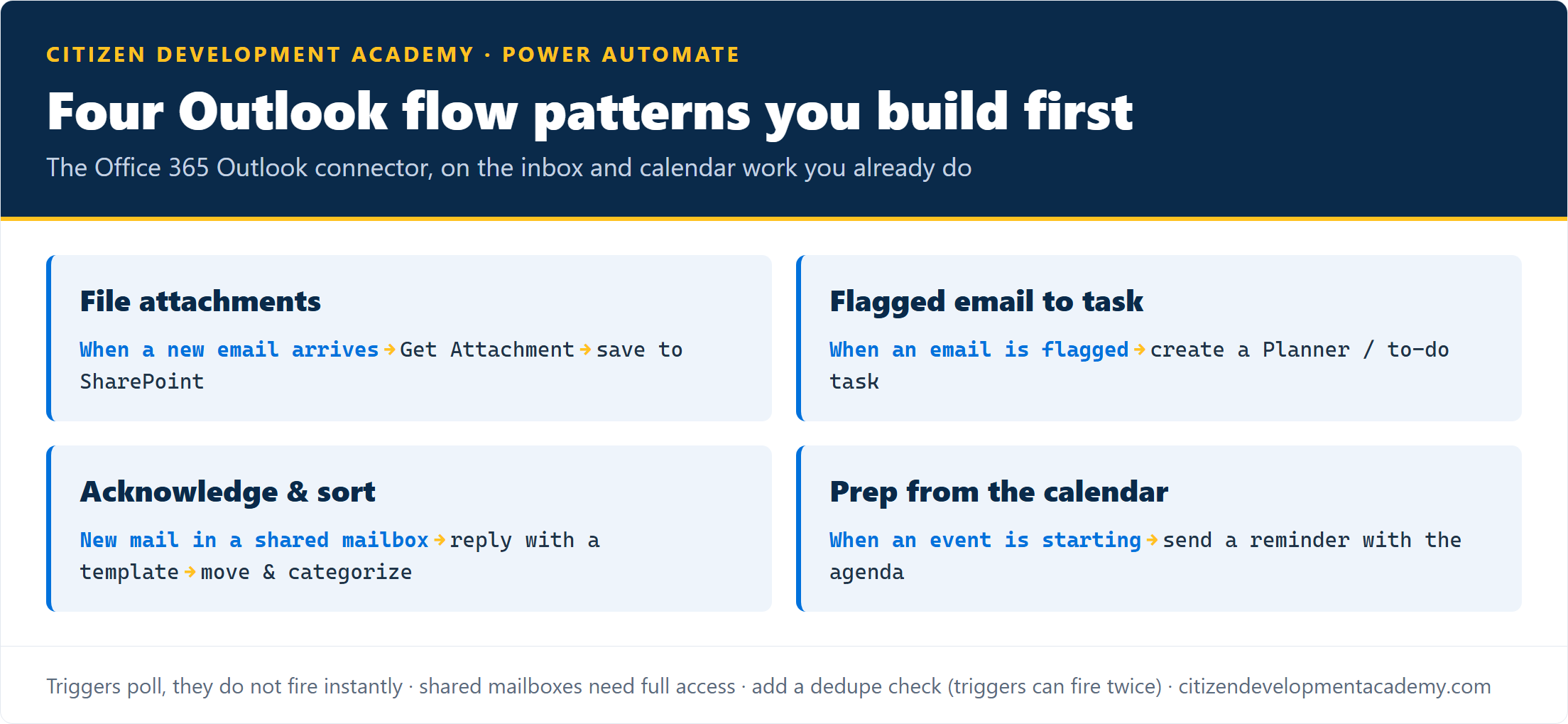
- File attachments automatically. When a new email arrives with an attachment, Get Attachment pulls the file and a SharePoint action saves it to the right library, so contracts and invoices stop living in inboxes. Pairs with the SharePoint connector.
- Turn a flagged email into a task. When you flag a message, the flow creates a Planner or to-do task from the subject and sender, so the flag becomes tracked work instead of a message you hope to remember.
- Acknowledge and sort. When mail lands in a shared support or intake mailbox, send a templated acknowledgement, then move and categorize it so the queue stays clean.
- Prep from the calendar. Before an event starts, send yourself or the attendees a reminder with the agenda and the relevant document link, or post it to a Teams channel, so nobody walks in cold.
For dates and times in those reminders and summaries, the formatDateTime guide covers the format strings the Outlook actions expect.
The limits that quietly break Outlook flows
Inbox flows tend to pass testing and then misbehave at volume or on edge cases. The ones worth designing around, all from the connector reference:
| Limit | What bites | The fix |
|---|---|---|
| Triggers can fire twice | Safe Attachments Dynamic Delivery and meeting-acceptance events fire a trigger more than once, so a flow can duplicate | Add a condition or dedupe check on anything that sends or writes |
| Email size | A single email tops out at 49 MB; inline embedded images are capped near 1 MB after encoding | Link large files (e.g. from SharePoint) rather than attaching |
| Item attachments | An email or calendar item attached to another email is not supported | Handle file attachments only; forward the original for item attachments |
| Shared mailboxes | Triggers and actions need full mailbox access, not just Send As; shared/group mailboxes do not support actionable (options) emails | Grant full access; avoid options emails on shared mailboxes |
| Get emails filter | Filtering on To, Cc, or From applies to the first 250 messages only | Use the Search Query option to reach further back |
| Calendar reads | Get calendar view returns at most 256 events; Get events V4 pages with Skip and Top | Page through with Skip and Top on busy calendars |
| A 504 on send | Retry logic can deliver the message twice | Make sends idempotent where duplicates matter |
None of these are reasons to avoid Outlook automation. They are why a flow that looked finished starts double-filing or silently skipping mail a month in, and knowing them up front is the difference.
What Power Automate for Outlook will not do for you
To set expectations the way the connector actually behaves:
- It is not instant. Triggers poll, they do not push; for sub-minute, high-volume mail processing the Microsoft Graph API is the right tool, not a flow.
- It is not Exchange mail flow. Transport rules, journaling, and server-side policies live in Exchange, not in a flow.
- It does not bypass the caps. The 49 MB email, the inline-image limit, and the 250-message and 256-event read limits above still apply.
- You own dedupe and idempotency. Because triggers can fire twice and a 504 can double-send, making writes and sends safe to repeat is your job, not the connector’s.
- It runs under an owner’s connection. A flow uses the maker’s mailbox connection and consumes their flow runs, so decide who owns a shared-mailbox flow and plan for when they leave.
FAQ
What can Power Automate do with Outlook?
Through the Office 365 Outlook connector, a flow can trigger on new or flagged email and on upcoming calendar events, and it can send, reply, forward, move, flag, and read email, pull attachments, and read or create calendar events. The common uses are filing attachments, turning flagged mail into tasks, acknowledging and sorting shared-mailbox mail, and calendar-driven reminders.
Why isn’t my Outlook flow triggering on new email?
Two usual causes. The triggers poll on a schedule rather than firing instantly, so allow for a delay of up to an hour at longer intervals. And if it is a shared mailbox, the connection needs full mailbox access, not just Send As, or the trigger never sees the mail.
Can Power Automate work with a shared mailbox in Outlook?
Yes, using the shared-mailbox trigger and the optional mailbox-address parameter on most actions, but the account needs full access to that mailbox, not only send permission. Note that shared and group mailboxes do not support actionable (options) emails.
Why does my Outlook flow run twice for one email?
Known trigger behavior: Safe Attachments Dynamic Delivery and meeting-acceptance updates can each fire a trigger more than once, and a 504 timeout on a send can double-deliver through retry. Add a condition or a dedupe step on any action that sends or writes, so a repeated trigger does not duplicate the work.
Stay in the loop
Get new posts delivered to your inbox. No spam, unsubscribe anytime.
Related articles
Free Power Automate Training: Where to Actually Start in 2026
Genuinely free Power Automate training: official Microsoft Learn paths, free hands-on practice, free guides, plus an honest note on where free stops.
Power Automate for Teams: Triggers, Actions, and Patterns (2026)
Power Automate for Microsoft Teams: posting messages and approval cards, the triggers that start a flow, copy-ready patterns, and the limits to plan around.
Power Automate for Excel: Actions, Patterns, and Limits (2026)
Power Automate for Excel: the connector actions, copy-ready flow patterns, the format-as-a-Table rule, and the limits that break flows at scale.