Power Automate for Teams: Triggers, Actions, and Patterns (2026)
Power Automate for Microsoft Teams: posting messages and approval cards, the triggers that start a flow, copy-ready patterns, and the limits to plan around.

In this article · 10 sections
Teams is where most organizations now talk, decide, and approve, so it is also where a lot of automation should surface: the channel post when something happens, the approval card that needs one click, the digest that saves a daily status meeting. Power Automate’s Microsoft Teams connector turns Teams into both a trigger source and a place to post, ask, and wait for an answer.
A Teams flow begins with a trigger (a Teams or external event) and runs one or more actions; the connector itself does three jobs, it posts messages and cards, it listens for messages and responses, and it manages teams and channels. Below: the triggers and actions worth knowing, the patterns to build first, and the limits that bite once Teams flows hit real volume.
Updated June 2026 against Microsoft’s current Microsoft Teams connector documentation.
Teams triggers: how a flow starts
These are the Teams events a flow can start from, per the Microsoft Teams connector reference:
| Trigger | Fires when |
|---|---|
| When a new channel message is added | A new root message is posted in a channel (not replies) |
| When I am mentioned in a channel message | Someone @mentions you in a channel |
| When keywords are mentioned | A configured keyword appears (single words only, not phrases); it does not fire on edited messages |
| When a new team member is added or removed | Membership changes on a team |
| When someone responds to an adaptive card | A user submits an adaptive card you posted |
Availability current as of June 2026; always choose the latest version the designer shows.
Two things shape every Teams flow. First, these are polling triggers, not push: the new-channel-message and channel-mention triggers run on a fixed 3-minute interval, and the rest wake on your Power Automate plan’s polling interval (as fast as every 5 minutes on Office 365 and Enterprise plans, up to 15 minutes on the free plan), so Teams automation is near-real-time, not instant. Second, three triggers (for a selected message, from the compose box, and when someone responds to an adaptive card) run only in your tenant’s default environment, and the selected-message and compose-box triggers are not supported in sovereign clouds (GCC, GCCH, DoD).
Teams actions: what the flow does
The actions you reach for most, from the same connector reference:
| Action | What it does |
|---|---|
| Post message in a chat or channel | Post a text message, as the Flow bot or as you |
| Post adaptive card and wait for a response | Post an interactive card and pause the flow until someone answers |
| Post card in a chat or channel | Post a formatted card (no wait) |
| Reply with a message in a channel | Reply in the thread of an existing message |
| Get messages | Read messages from a channel or chat |
| Get @mention token for a user | Build a real @mention to drop into a message or card |
| Create a Teams meeting / Add a member to a team | Spin up a meeting with a join link, or manage membership |
The standout is Post adaptive card and wait for a response: it turns a channel into an inline approval or intake form without a separate app, which is the pattern most Teams flows are really after.
A minimal approval card is just a question and two submit actions:
{
  "type": "AdaptiveCard",
  "$schema": "http://adaptivecards.io/schemas/adaptive-card.json",
  "version": "1.5",
  "body": [
    { "type": "TextBlock", "text": "Approve this expense report?", "weight": "Bolder" }
  ],
  "actions": [
    { "type": "Action.Submit", "title": "Approve", "data": { "decision": "approve" } },
    { "type": "Action.Submit", "title": "Reject", "data": { "decision": "reject" } }
  ]
}
Two behaviors to plan for, both from the adaptive cards overview: the action returns one response per card (the first submission continues the flow and later ones are ignored, so set an update message to show the card is closed), and a card posted without the wait suffix errors on any Submit button except a URL action. Because the flow pauses until someone answers, add a parallel reminder or timeout branch with a default outcome for the case where nobody responds.
Four Teams flow patterns to build first
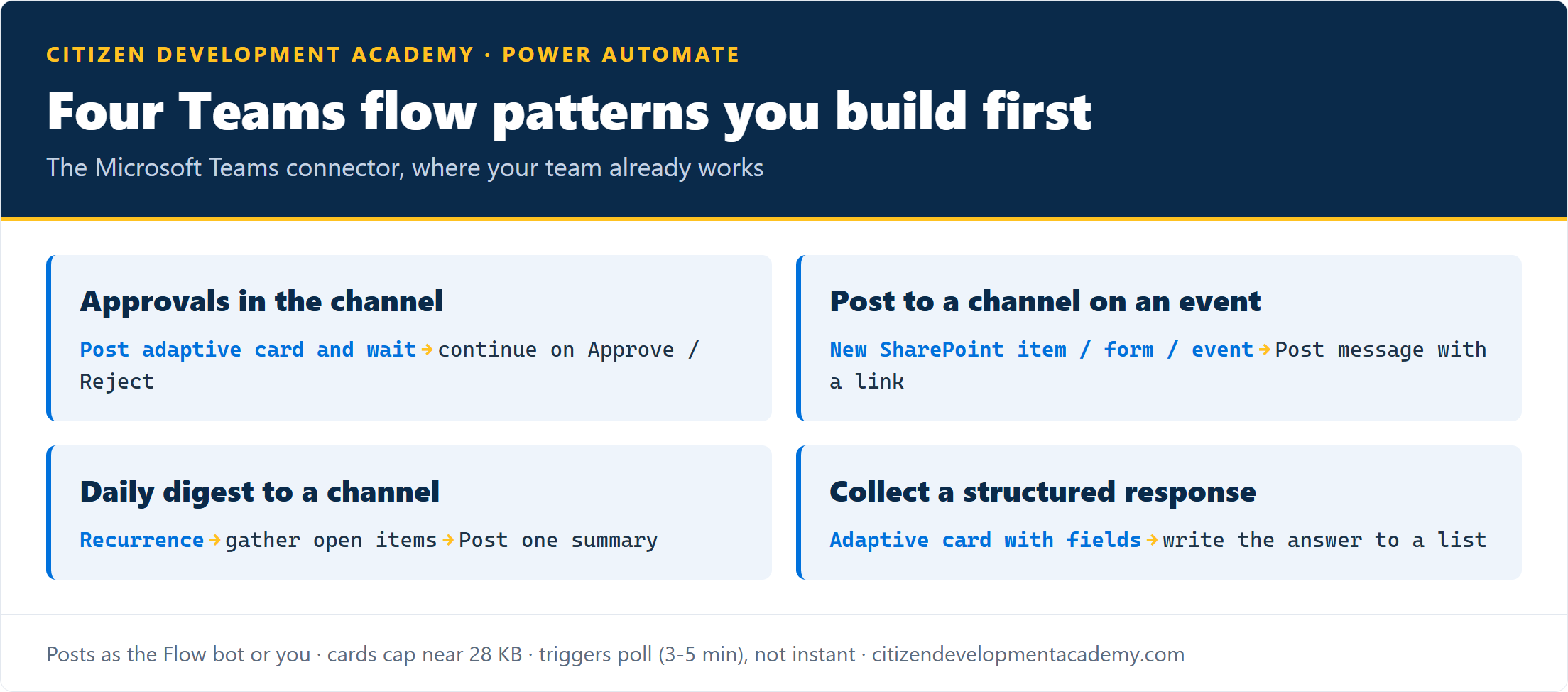
- Approvals in the channel. When something needs a decision, Post adaptive card and wait for a response drops Approve and Reject buttons into the channel or a chat, and the flow continues on the answer, no inbox round-trip.
- Post to a channel when something happens. A new SharePoint item, a form response, or an Outlook event triggers a clear channel message with the details and a link, so the team sees it where they already are.
- Daily digest to a channel. A scheduled flow gathers the day’s open items and posts one channel summary, replacing the standup-status message someone used to write by hand.
- Collect a structured response. An adaptive card with fields (a request, a rating, a choice) captures input right in Teams and writes it to a SharePoint list or an Excel table, so intake does not need a separate form.
For the date and time formatting those digests and cards need, the formatDateTime guide covers the format strings.
The limits that quietly break Teams flows
Teams flows tend to demo well, then hit a wall on size, identity, or scope. The ones to design around, most from the connector reference and the message-size cap from the Teams limits page:
| Limit | What bites | The fix |
|---|---|---|
| Message and card size | A channel post (message text, links, mentions, and reactions) caps at roughly 100 KB, and Microsoft recommends staying under about 80 KB; an oversized post returns a 413 “request entity too large” | Keep cards lean and link to detail instead of embedding it |
| Mentions per message | At most 20 user @mentions and 20 tag mentions in one message | Mention a tag or channel rather than many individuals |
| Posting identity and sovereign clouds | Posts go out as the Flow bot or as a user; adaptive cards are not available in DoD, and the selected-message and compose-box triggers are unsupported in sovereign clouds (GCC, GCCH, DoD) | In sovereign tenants, post as a user and avoid adaptive-card and selected-message patterns |
| Private channels | Posting a message or adaptive card to a private channel is not supported | Post to a standard channel or a chat instead |
| Triggers poll, not push | The channel-message and channel-mention triggers poll every 3 minutes; other triggers wake on your plan’s interval, and polling triggers can reprocess on a retry | Allow for the delay; add a dedupe check on anything that writes or posts |
| Throttling | 100 API calls per connection per 60 seconds | Batch posts and avoid per-row loops that hammer the connector |
None of these should stop you automating Teams. They are why a flow that demoed cleanly starts rejecting an oversized card or skipping a private channel weeks later, so design for them from the start, and confirm any exact figure against the live connector reference, since these limits can change without notice.
What Power Automate for Teams will not do for you
A few honest limits on what this connector is for:
- Real-time it is not. Triggers poll every few minutes, so a live conversational bot belongs in Copilot Studio or the Bot Framework, not a flow.
- It is not a chatbot platform. Adaptive cards collect structured responses well, but a back-and-forth conversational agent is a different tool.
- It does not post to private channels. That scope is unsupported; plan around standard channels and chats.
- You own the card design and the dedupe. The adaptive-card JSON is yours to build and keep under the size cap, and because triggers can repeat, idempotency on writes is your job.
- Someone owns it. The flow posts under the maker’s connection (or the Flow bot) and burns their runs, so settle ownership before a shared flow ships.
FAQ
What can Power Automate do with Microsoft Teams?
Through the Microsoft Teams connector, a flow can trigger on a new channel message, an @mention, a watched keyword, a membership change, or an adaptive-card response, and it can post messages and cards, reply in a thread, post an approval card and wait for the answer, read messages, build @mention tokens, create meetings, and manage team membership. The most common uses are approvals in a channel, event notifications, daily digests, and structured intake.
How do I send an approval in Teams with Power Automate?
Use the “Post adaptive card and wait for a response” action: it posts an interactive card with your buttons or fields into a channel or chat and pauses the flow until someone responds, then continues on their answer. It is the no-extra-app way to run a lightweight approval where the team already works.
Why is my Teams flow slow to trigger?
The Teams triggers poll rather than fire instantly: the new-channel-message and @mention triggers run on a fixed 3-minute interval, and the other triggers wake on your Power Automate plan’s polling interval, as fast as every 5 minutes on Office 365 and Enterprise plans and up to 15 minutes on the free plan, so a short delay is expected. Polling triggers can also reprocess events on a retry, so add a dedupe check on anything that posts or writes.
Can Power Automate post to a private channel in Teams?
No. Posting a message or adaptive card to a private channel is not supported by the connector. Post to a standard channel or a chat instead. Note too that adaptive cards are not available in DoD tenants, and the selected-message and compose-box triggers are not supported in sovereign clouds (GCC, GCCH, DoD).
Stay in the loop
Get new posts delivered to your inbox. No spam, unsubscribe anytime.
Related articles
Free Power Automate Training: Where to Actually Start in 2026
Genuinely free Power Automate training: official Microsoft Learn paths, free hands-on practice, free guides, plus an honest note on where free stops.
Power Automate for Outlook: Triggers, Actions, and Patterns (2026)
Power Automate for Outlook: the email and calendar triggers and actions that matter, copy-ready flow patterns, and the limits that quietly break inbox flows.
Power Automate for Excel: Actions, Patterns, and Limits (2026)
Power Automate for Excel: the connector actions, copy-ready flow patterns, the format-as-a-Table rule, and the limits that break flows at scale.