Power Automate for SharePoint: Triggers, Actions, Examples (2026)
Power Automate for SharePoint: the triggers, actions, and copy-ready flow patterns that matter, plus the July 2026 alerts retirement you must migrate before.

In this article · 17 sections
SharePoint is where most organizations keep the lists and documents their work runs on, and Power Automate is how that content stops needing a human to babysit it. A new item kicks off an approval. An uploaded contract gets filed and the team gets pinged. A list of due dates emails the owner three days out. None of it requires code, and as of 2026 some of it is no longer optional: the old SharePoint Alerts feature is being retired, and Power Automate is the replacement Microsoft points you to.
This guide covers the SharePoint triggers and actions that actually matter, the flow patterns you will build first, the alerts deadline, and the connector limits that quietly break flows if you do not know them going in.
Updated June 2026 against Microsoft’s current SharePoint connector documentation.
Why Power Automate is the SharePoint automation tool Microsoft points to
Microsoft has spent years funneling SharePoint automation into Power Automate, and the door is now closing on the alternatives. SharePoint 2010 workflows retired in November 2020, and SharePoint 2013 workflows are fully retired as of April 2, 2026. And the simple per-user SharePoint Alerts feature, the “email me when this changes” checkbox, is next: per Microsoft’s own notice, “Starting in July 2026, Microsoft will remove the ability to use SharePoint Alerts,” with rules or Power Automate as the recommended replacement.
If your team still relies on alerts to know when a document lands or a status flips, that is a 2026 migration, not a someday-maybe. The good news is that the Power Automate replacement is more capable than the thing it replaces: a flow can do far more than email you.
The mental model is two layers: SharePoint stores the lists and documents, and Power Automate is the engine that watches them. Every flow has exactly one trigger (the SharePoint event that starts it) and one or more actions (the work it then does). The rest of this guide is those two layers.
SharePoint triggers: how a flow starts
A trigger is the SharePoint event that starts your flow. Per the SharePoint connector reference, the ones you will reach for first:
| Trigger | Fires when |
|---|---|
| When an item is created | A new item is added to a list |
| When an item is created or modified | An item is added, or any time it changes |
| When an item or a file is modified | An item or document changes (pairs with Get changes) |
| When an item is deleted | An item is removed from a list |
| When a file is created (properties only) | A document is added to a library |
| For a selected item | A user manually runs the flow from the list |
One caveat on that last trigger, from the connector reference: only flows in your tenant’s default environment can be run manually from a SharePoint list, so if your team works in a separate or solution-aware environment, the “For a selected item” and “For a selected file” triggers will not appear there.
Two behaviors to internalize before you build:
- Triggers poll, they do not push. Power Automate periodically checks the list for changes, so a flow usually runs within minutes of a change, not instantly. One poll can also gather several changes at once. This is the trigger-condition and patience discipline, not a bug.
When an item is created or modifiedre-fires on every edit, including the edits your own flow makes. Without a trigger condition, an update-in-place flow can trigger itself in a loop. Gate it with an expression like@not(equals(triggerOutputs()?['body/Status/Value'],'Approved')); the trigger conditions guide has the full syntax.
SharePoint actions: what a flow does
Once a flow starts, Microsoft documents more than 40 SharePoint actions. The workhorses:
- Get items and Get files (properties only): pull list items or document properties, narrowed with a filter query so you fetch only what you need.
- Create item / Update item / Delete item: write back to a list.
- Get file content / Create file / Update file: move document contents around.
- Get changes for an item or a file: paired with the modified trigger, tells you exactly which columns changed.
- Create sharing link / Stop sharing an item or a file: manage permissions in a flow.
- Send an HTTP request to SharePoint: the escape hatch for anything the named actions do not cover.
Power Automate SharePoint examples
The patterns that cover most real requests. Each is a flow you build once and forget.
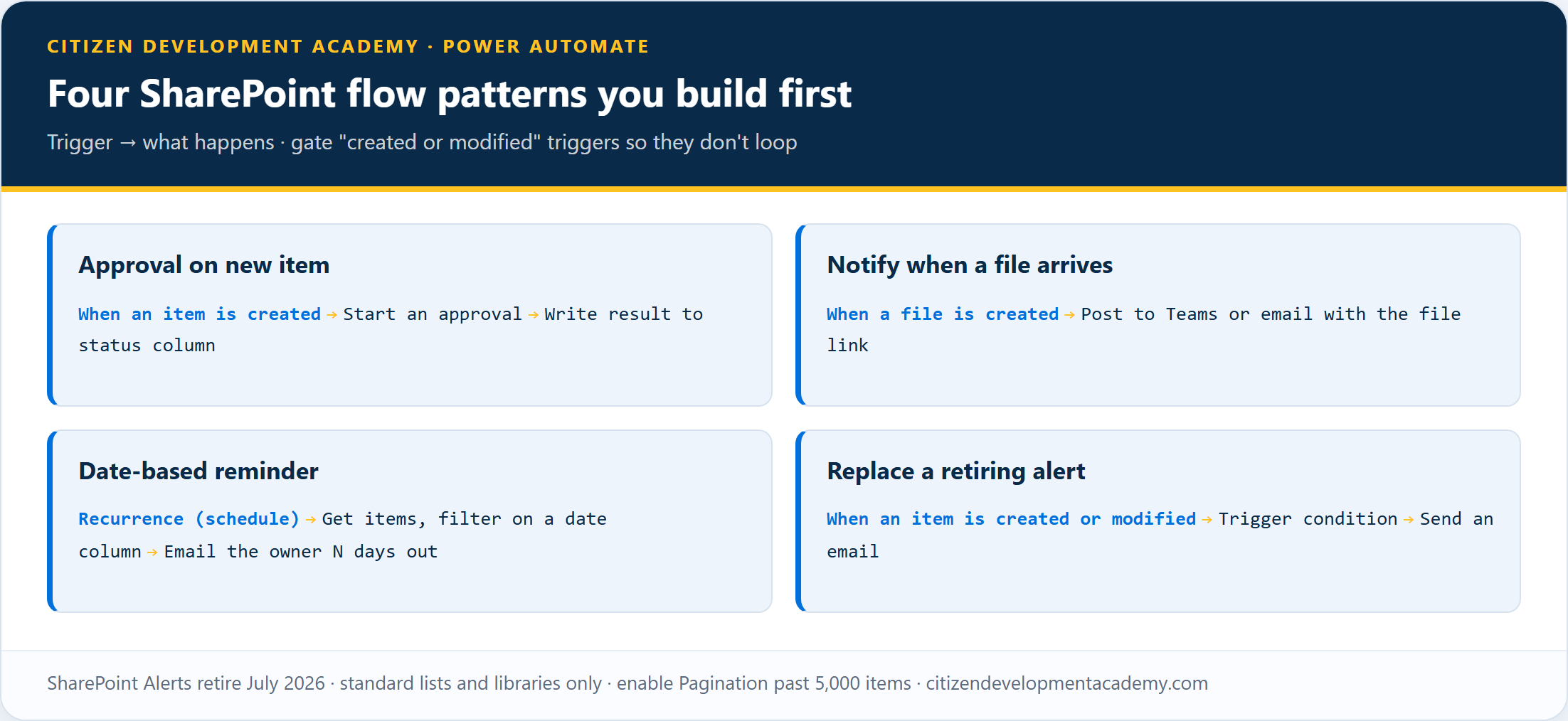
Approval when a new item is added
The most common SharePoint flow: When an item is created starts an approval, the approver gets an email with Approve/Reject buttons, and the result writes back to a status column. This is the modern replacement for the routing that classic workflows used to do.
Notify a channel when a file arrives
When a file is created (properties only) on a document library, then a Teams or email message with the file name and a link. The team knows a contract landed without anyone watching the folder.
Date-based reminders (the alerts upgrade)
SharePoint Alerts only ever told you something changed. A flow can tell you something is about to happen. Microsoft’s own reminder-flow pattern runs on a schedule, uses Get items with a filter query on a date column, and emails the owner a set number of days before a due date. Renewals, review dates, and deadlines stop slipping.
Replace a retiring alert
For a like-for-like alert replacement: When an item is created or modified, a trigger condition so it only fires on the change you care about, then Send an email. Same notification the alert gave you, except now you control exactly when it fires and what it says. For a pure same-list “tell me when this changes,” a native SharePoint list rule may be enough on its own; reach for a flow when the logic outgrows what a rule can express.
One migration note people miss: a classic alert was per-user and self-service and consumed nothing. The replacement flow runs under its owner’s connection and DLP scope and consumes flow runs, so decide who owns it (often a service or shared account), confirm that owner has list access, and plan for what happens when the maker leaves.
Alerts retire fully in July 2026, and the daily-digest version takes more than a single trigger to rebuild. The full guide to replacing SharePoint Alerts with Power Automate walks through each alert type, the digest pattern, and the migration checklist.
The limits that trip people up
These are documented connector limits, not bugs, and each one produces a confusing failure if you do not know it:
| Limit | What you see | The fix |
|---|---|---|
| Standard lists and libraries only (templates 100 and 101) | Triggers and actions do not work on Announcements, Contacts, or Tasks lists | Use a standard list or document library |
| Get items / Get files return at most 12 lookup columns | The action fails on a list with more lookup columns | Trim with a view or reduce lookup columns |
| The 5,000-item threshold | Get items with a filter query returns nothing on a big list | Enable Pagination in the action settings (filter query guide) |
| Conditional Access must match across SharePoint and Power Automate | An authentication error running a flow from a list | An Entra ID Conditional Access policy your IT admin controls, so this is a ticket to IT, not a flow change |
| Moves and syncs do not change metadata | A moved or synced file does not fire create/modify triggers | Design around it, or trigger on the destination differently |
What Power Automate for SharePoint will not do for you
- It will not run instantly. Polling triggers mean minutes, not milliseconds, and the interval depends on your plan and tenant load and can stretch longer under throttling. For genuinely real-time needs, the architecture is different.
- It will not migrate your old workflows automatically. SharePoint 2013 workflows are retired. The SharePoint Migration Tool can carry classic Designer workflows during a SharePoint Server to SharePoint Online migration, but it is not a same-tenant converter and not a Power Automate converter; in SharePoint Online the rebuild is yours to plan.
- It is not the only notification option. For a simple same-list alert, a native SharePoint list rule may be all you need; Power Automate is the answer when the logic is bigger than a rule.
- It will not fix a messy list. Internal column names, consistent choice values, and an indexed date column make every flow above simpler. Good list design is upstream of good automation.
FAQ
Are SharePoint Alerts being retired?
Yes. Microsoft’s notice states that starting in July 2026 it will remove the ability to use SharePoint Alerts, and recommends list rules or Power Automate instead. A flow is the more capable replacement, since it can act on a change, not just email about it.
How do I get notified when a SharePoint list item changes?
Build a flow on When an item is created or modified, add a trigger condition so it only fires on the change you care about, then add a Send an email or Teams message action. This is the direct alerts replacement.
Why does my SharePoint flow run a few minutes late?
SharePoint triggers poll for changes on an interval rather than firing instantly, so a short delay is normal, and one run can pick up several changes at once.
Why does my Get items return nothing on a big list?
The 5,000-item threshold: if no matching item is in the first 5,000, the action returns empty. Turn on Pagination in the action’s settings.
Can Power Automate work with any SharePoint list?
Standard lists and document libraries only (templates 100 and 101). Special templates such as Announcements, Contacts, and Tasks are not supported by the list triggers and actions.
The habits that keep SharePoint flows boring
SharePoint automation goes wrong for predictable reasons, so a few habits prevent most of it: gate created or modified triggers so they do not loop, narrow Get items with a filter query and enable Pagination on big lists, expect polling delay rather than chasing it, and plan the alerts-to-flow migration before July 2026 rather than after the emails stop.
The surrounding skills, trigger conditions, filter queries, sending email, and date formatting, all show up in real SharePoint flows; the guides cover each. For the structured, hands-on path from first flow to production, there is our 80-hour Power Automate course.
Stay in the loop
Get new posts delivered to your inbox. No spam, unsubscribe anytime.
Related articles
Free Power Automate Training: Where to Actually Start in 2026
Genuinely free Power Automate training: official Microsoft Learn paths, free hands-on practice, free guides, plus an honest note on where free stops.
Power Automate for Teams: Triggers, Actions, and Patterns (2026)
Power Automate for Microsoft Teams: posting messages and approval cards, the triggers that start a flow, copy-ready patterns, and the limits to plan around.
Power Automate for Outlook: Triggers, Actions, and Patterns (2026)
Power Automate for Outlook: the email and calendar triggers and actions that matter, copy-ready flow patterns, and the limits that quietly break inbox flows.