Power Automate Filter Query: OData Syntax, Examples, Fixes (2026)
Power Automate filter query: OData syntax for SharePoint Get items, copy-paste examples, supported operators, and invalid-filter fixes. Updated June 2026.

In this article · 22 sections
A filter query tells Power Automate to filter data at the source, so Get items returns the twelve rows you need instead of the twelve hundred you would otherwise loop through. It is one OData expression in one optional field, it makes flows dramatically faster on large lists, and it produces one famously unhelpful invalid-filter error when the syntax is off.
This guide covers the syntax that the SharePoint actions actually support, copy-paste examples, the Dataverse differences, the 5,000-item trap, and the checklist for when a filter query returns nothing.
Updated June 2026: rewritten against Microsoft’s current SharePoint and Dataverse OData documentation. The previous version of this guide listed endswith and date functions that are not in the SharePoint connector’s documented operator set; this version treats anything outside that set as unsupported.
What is a filter query in Power Automate?
A filter query is an OData filter expression you put in the Filter Query field of actions like SharePoint Get items and Get files. The action evaluates it on the server and returns only the matching items: no retrieval of the whole list, no Filter array step, no looping over rows you never wanted.
The shape is always the same: a column’s internal name, an operator, and a value.
Status eq 'Completed'Power Automate gives you four ways to filter data, and choosing the right one is most of the skill:
| Method | Where it filters | Best for |
|---|---|---|
| Filter Query | At the source, before data leaves SharePoint or Dataverse | The default choice; fastest, fewest API calls |
| Filter array | In the flow, after retrieval | Conditions the source cannot express; data already in the flow |
| Condition | In the flow, per item | Branching logic, not bulk filtering |
| Select | In the flow, on columns | Trimming columns, not rows |
When the source can express your condition, filter at the source. The rest of this guide is about doing exactly that.
Where the Filter Query field lives
In the Get items action (and Get files), after you pick the site address and list name, expand the advanced parameters and you will find Filter Query as an optional field. Type the expression directly; no @ prefix and no expression wrapper around the whole thing, unlike trigger conditions.
Power Automate OData filter query syntax: what SharePoint supports
Per Microsoft’s Get items guidance, this is the full operator set Microsoft documents for the SharePoint actions; treat anything outside it as unsupported:
| Type | Operators / functions | Example |
|---|---|---|
| Comparison | eq, ne, gt, ge, lt, le | Quantity gt 100 |
| String functions | startswith(), substringof() | startswith(Title, 'A') |
| Logic | and, or | Location eq 'Midwest' and Status eq 'Approved' |
| Lookup columns | Column/Title path | Country/Title eq 'New Zealand' |
Sorting is not part of the filter expression: the separate Order By field takes InternalName asc or InternalName desc.
Three rules that prevent most failures:
- Use internal column names. A column displayed as “Start Date” is
Start_x0020_Dateinternally (spaces become_x0020_, with a zero). To confirm a name: open List Settings, click the column, and read the text afterField=at the end of the browser address bar. - Quote strings and dates, not numbers or booleans.
Status eq 'Approved'butQuantity gt 100. endswithandcontainsare not on SharePoint’s supported list. For contains-style matching,substringof('text', Column)is the supported SharePoint equivalent. There is no endswith equivalent; that is a Filter array job. (Dataverse is different, below.)
Power Automate filter query examples
Copy-paste recipes; swap in your own internal column names.
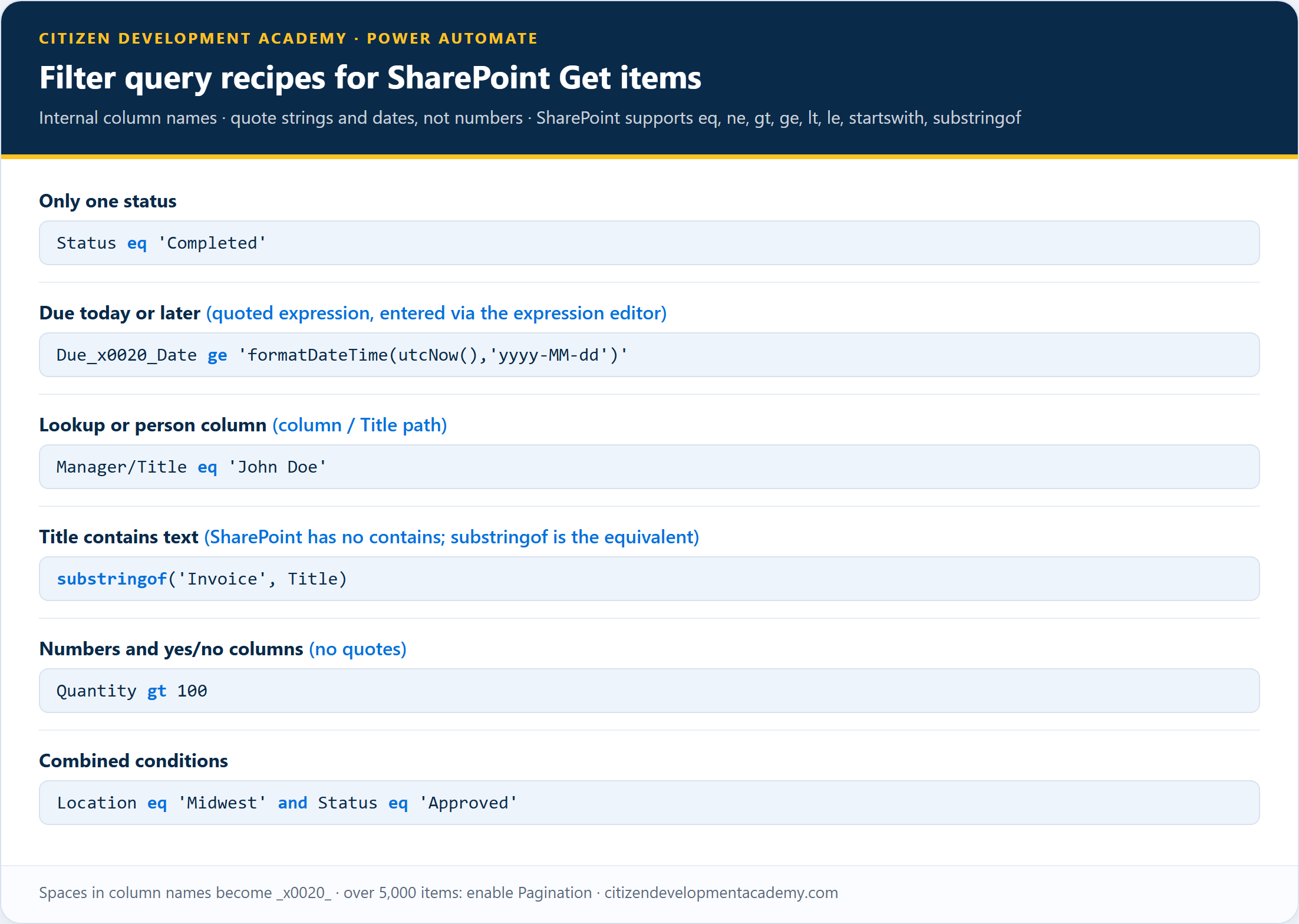
Equals and not-equals
Status eq 'Completed'
Status ne 'Draft'
Items due today or later
Microsoft’s own documented pattern wraps a formatDateTime expression in quotes:
Due_x0020_Date ge 'formatDateTime(utcNow(),'yyyy-MM-dd')'This is the one recipe you cannot paste verbatim. Build it in three steps: type Due_x0020_Date ge ' as plain text, insert formatDateTime(utcNow(),'yyyy-MM-dd') through the expression editor, then type the closing '. At run time the expression resolves to today’s date in ISO format and the comparison works server-side.
Multiple conditions
Location eq 'Midwest' and Status eq 'Approved'
Priority eq 'High' or Priority eq 'Critical'
Lookup and person columns
Manager/Title eq 'John Doe'
Country/Title eq 'New Zealand'
The pattern is the lookup column’s name, a slash, and a column from the referenced list.
Text begins with, text contains
startswith(Title, 'RFQ')
substringof('Invoice', Title)
Note the argument order difference: startswith takes the column first, while substringof follows the older OData convention of search text first, column second.
A worked example
An invoice-approval list with 12,000 items: you need open invoices over $5,000 for one region, assigned to a manager. The display columns “Invoice Total” and “Assigned Manager” are Invoice_x0020_Total and Assigned_x0020_Manager internally, so the query is:
Region eq 'EMEA' and Status eq 'Open' and Invoice_x0020_Total gt 5000 and Assigned_x0020_Manager/Title eq 'John Doe'And because the list passes 5,000 items, Pagination goes on in the action settings before you test, not after the flow mysteriously returns nothing.
Numbers and yes/no columns
Quantity gt 100
Completed eq true
No quotes on either.
Dataverse filter rows: same idea, bigger toolbox
If your flow reads Dataverse instead of SharePoint (the List rows action or the filter rows field on Dataverse triggers), the $filter documentation allows more:
contains,startswith, andendswithall work on strings, and string filters are case-insensitive.notand parentheses for grouping:(contains(name,'sample') or contains(name,'test')) and revenue gt 5000.- Up to 500 conditions per query, with
In/NotInfunctions to keep long value lists compact.
Side by side, from the two documents linked above:
| Capability | SharePoint Get items | Dataverse List rows |
|---|---|---|
eq ne gt ge lt le, and, or | Yes | Yes |
startswith | Yes | Yes |
substringof | Yes (the contains-equivalent) | Use contains instead |
contains, endswith | Not documented | Yes |
not, () grouping | Not documented | Yes |
| String case sensitivity | Not documented | Case-insensitive |
| Large-data behavior | 5,000-item limit; enable Pagination | Up to 500 conditions; In/NotIn |
The practical takeaway: do not carry SharePoint’s limits to Dataverse or Dataverse’s freedoms to SharePoint. An invalid-filter error on a SharePoint action is often a Dataverse-only function that traveled with you.
The 5,000-item trap: when Get items returns nothing
A documented limitation that looks exactly like a broken filter: on lists with more than 5,000 items, Get items with a filter query can return nothing if no matching items exist in the first 5,000.
The fix: open the action’s settings and enable Pagination.
If a filter that works on a small list silently returns zero results on a big one, check this before touching the syntax.
Fixing “invalid filter clause” and empty results
Work down this list:
- Internal name, not display name. “Start Date” is
Start_x0020_Date. This is the single most common failure. - Quoting. Strings and dates in single quotes; numbers and booleans bare.
- Unsupported operator on SharePoint.
endswith,contains, and date functions likeyear()are not in the SharePoint connector’s documented set. Rewrite with the supported operators or move that condition to a Filter array. - Lookup column paths. Lookup and person columns need the
Column/Titleform; a bareManager eq 'John Doe'fails. Single-choice columns are the opposite: a plain quoted value, no path. - Empty but no error? Big list: enable Pagination (the 5,000-item trap above). Also confirm the value’s exact spelling.
What a filter query cannot do
- It cannot run endswith on SharePoint. endswith is outside the documented operator set, so treat it as unsupported: retrieve with the broadest supported filter you can, then use a Filter array action with an
endsWith()expression in the flow. - It cannot reference flow variables without the expression editor. In practice, values from earlier steps only resolve when inserted as expressions; pasted as plain text they compare literally.
- It cannot replace good list design. If every flow filters the same massive list, an indexed column (set in SharePoint list settings) helps SharePoint evaluate those filters; Pagination remains the documented fix for the 5,000-item behavior.
FAQ
How do I filter Get items by today’s date?
Compare the date column against a quoted formatDateTime expression: Due_x0020_Date ge 'formatDateTime(utcNow(),'yyyy-MM-dd')', entered via the expression editor. This is Microsoft’s documented pattern for date filters.
Why does my filter query return no results?
Most often: the column’s internal name differs from its display name, or the list has more than 5,000 items and Pagination is off. Check both before rewriting the expression.
Does the SharePoint filter query support contains?
Not by that name. Use substringof('text', Column), which is the SharePoint-supported contains-equivalent. On Dataverse, contains(column,'text') works directly.
How do I combine multiple conditions?
With and / or: Status eq 'Approved' and Quantity gt 100. On Dataverse you can also group with parentheses and use not.
Are filter queries case-sensitive?
Column internal names must match exactly. For string values, Dataverse filters are case-insensitive per Microsoft’s documentation; Microsoft’s SharePoint guidance does not document case behavior, so do not design around it. The failures you will actually meet come from names and quoting.
The habits that keep filter queries boring
Filter queries fail for boring reasons, so boring habits fix them:
- Look up the internal column name before writing the expression.
- Quote strings and dates; leave numbers and booleans bare.
- Stay inside the documented operator set for your connector.
- Enable Pagination on any list that might pass 5,000 items.
The same OData muscle pays off in trigger conditions and Dataverse work, and the surrounding skills live in our guides to expressions, variables, and Compose. For the structured, hands-on path, there is our 80-hour Power Automate course.
Stay in the loop
Get new posts delivered to your inbox. No spam, unsubscribe anytime.
Related articles
Free Power Automate Training: Where to Actually Start in 2026
Genuinely free Power Automate training: official Microsoft Learn paths, free hands-on practice, free guides, plus an honest note on where free stops.
Power Automate for Teams: Triggers, Actions, and Patterns (2026)
Power Automate for Microsoft Teams: posting messages and approval cards, the triggers that start a flow, copy-ready patterns, and the limits to plan around.
Power Automate for Outlook: Triggers, Actions, and Patterns (2026)
Power Automate for Outlook: the email and calendar triggers and actions that matter, copy-ready flow patterns, and the limits that quietly break inbox flows.