Power Automate Email to CRM: Turn Inbox Messages Into Records
Build a no-code Power Automate flow that turns inbound email into a CRM record using the Outlook trigger, AI Builder, and Dataverse.
In this article · 19 sections
If new business reaches you by email and someone retypes each message into your CRM by hand, that is a job Power Automate can do for you. This guide builds a flow that watches an inbox, reads each new message, pulls out the details that matter, and writes a CRM record automatically. It is a low-code build: configuration and one short AI prompt, no application code.
The phrase people search for this under is “Power Automate email to CRM,” and the pattern is exactly that: inbound email in, structured CRM record out, with a person kept in the loop on anything the AI is unsure about.
Steps and product names reflect a June 2026 check against Microsoft Learn, linked inline. Connector and action names can change; confirm against the linked pages.
What you build
A cloud flow: new email triggers it, AI Builder pulls out the fields, and Dataverse stores a new CRM record, with a reply sent and low-confidence cases routed to a person.
What you need
Microsoft 365 with Power Automate, a Dataverse environment for the CRM table, and an AI Builder add-on if you use the GPT extraction step.
Two extraction paths
An AI Builder GPT prompt (flexible, returns the exact fields you ask for) or the prebuilt entity-extraction model (no prompt, more generic). This guide shows both.
What “email to CRM” actually means here
CRM, in the Microsoft world, usually means Microsoft Dataverse, the data platform under Dynamics 365 and Power Apps. A “record” is a row in a table, for example a row in the Leads or Contacts table. So “email to CRM” means: when a message arrives, create or update a row in a Dataverse table with the details from that message.
How Power Automate reads email and creates a CRM record
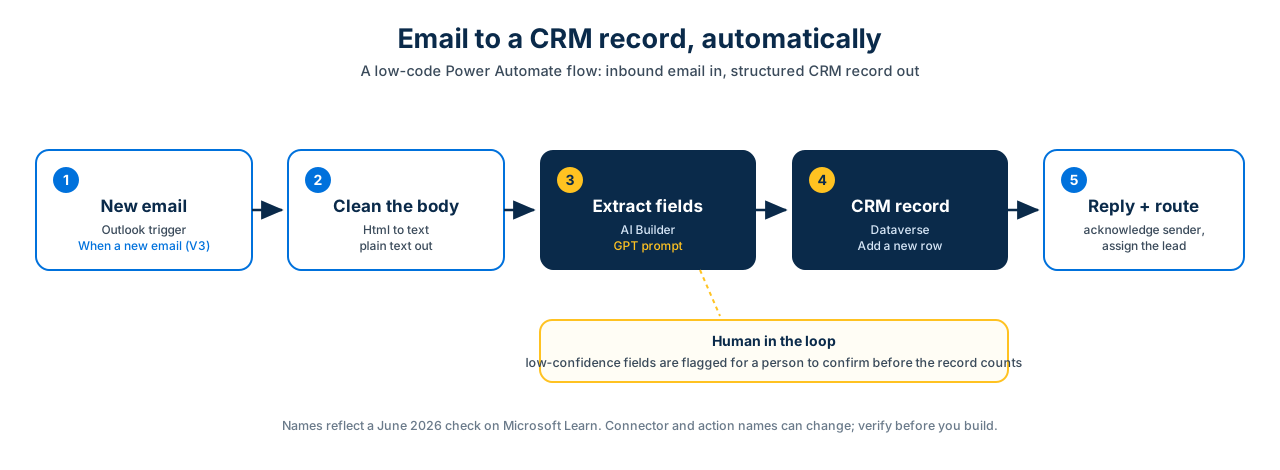
The flow has five parts, and the rest of this guide builds them in order:
- Trigger on a new email.
- Clean the email body into plain text.
- Extract the details you care about.
- Create the CRM record in Dataverse.
- Acknowledge the sender and route anything uncertain to a person.
What you need first
- Power Automate, included with most Microsoft 365 business plans. You build the flow at make.powerautomate.com.
- A Dataverse environment with the table you want to write to (Leads, Contacts, or a custom table). Dataverse is where the Add a new row action writes.
- An AI Builder add-on if you use the AI extraction step. AI Builder is metered (credits or capacity, depending on the capability and your tenant), and the AI Builder in Power Automate overview lists the actions and notes that each capability has its own rate. The prebuilt entity-extraction path also uses AI Builder.
Confirm licensing for your tenant before you build, because AI Builder capacity and Dataverse access depend on your plan.
Step 1: Trigger on a new email
Create an automated cloud flow and choose the Office 365 Outlook trigger When a new email arrives (V3). Per Microsoft’s email-trigger guidance, this trigger can filter on the properties that keep noise out of your flow:
- Folder, so you only process a dedicated inquiries folder rather than the whole inbox.
- To, useful when several addresses land in one shared mailbox.
- From, Subject Filter, Importance, and Has Attachment for finer control.
One quota detail worth knowing up front: Microsoft’s email-trigger docs note that you should filter in the trigger itself rather than checking the property later in a condition, because a condition-based check still counts each message against your plan’s run quota. Filtering at the trigger avoids burning runs on email you do not care about.
The trigger runs as the account behind your Outlook connection. To watch a shared mailbox, give that account access to the mailbox and confirm the folder you chose is reachable.
Step 2: Clean the email body into plain text
Email bodies arrive as HTML, which confuses text extraction. Add the Html to text action and feed it the trigger’s Body output. This converts the message to plain text that the extraction step can read cleanly. Microsoft uses exactly this step ahead of entity extraction in its prebuilt entity-extraction walkthrough.
Step 3: Extract the details that matter
This is the step that replaces the retyping. You have two supported routes.
Option A: An AI Builder GPT prompt (recommended for structured fields)
Add the AI Builder action Create text with GPT using a prompt, listed in the AI Builder in Power Automate overview. It runs on a Microsoft-managed GPT model (GPT-4o at the time of writing; the backing model can change), and availability is gated by region and tenant, so confirm the action appears in your environment. Because you write the instruction, you control exactly which fields come back.
Paste the plain text from Step 2 into the prompt and ask for the fields you want as JSON. A working prompt looks like this:
From the email below, extract these fields and return ONLY valid JSON
with exactly these keys, no markdown, no code fences, no commentary:
{ "contact_name": "", "company": "", "email": "", "phone": "",
  "interest": "", "summary": "", "needs_review": false }
Set needs_review to true if any field is missing or ambiguous.

Email:
[ insert the plain text from the Html to text step ]
That returns something like:
{ "contact_name": "Dana Ruiz", "company": "Maple Lane", "email": "dana@example.com",
  "phone": "813-555-0142", "interest": "memory care, late-summer move",
  "summary": "Daughter asking about availability and pricing.", "needs_review": false }
The GPT action gives you a single Text output. Add a Parse JSON action after it, and build the schema by pasting a sample like the one above into Generate from sample. Each key then becomes dynamic content for the next step. One guardrail: GPT can wrap its answer in markdown fences or stray text, which breaks Parse JSON. Keep the “return ONLY valid JSON” instruction, and if it still happens, add a Compose step to trim anything before the first { or after the last }.
Option B: The prebuilt entity-extraction model (no prompt)
If you would rather not write a prompt, add Extract entities from text with the standard model and pass it the plain text. The prebuilt entity-extraction model recognizes generic categories such as person, organization, phone number, and email out of the box. It is simpler to set up, but more generic than a GPT prompt, and the standard model has limits to plan around: a per-run text limit (5,000 characters, per the model page, checked June 2026) and a fixed set of supported languages.
For a CRM lead with specific fields, Option A usually maps more cleanly. For a quick “pull the names and contact details out” job, Option B is faster to stand up.
Step 4: Create the CRM record in Dataverse
Add the Microsoft Dataverse action Add a new row, then choose your table, for example Leads. The card expands to show the table’s columns, with required ones marked. Map each column to the matching field from Step 3 using the Dynamic content picker. Microsoft’s own tutorial does this exact thing, adding a new row when an email arrives.
A few practical notes:
- Attach the original message or store its unique id on the row, so the record links back to the source email.
- To avoid duplicates, either list rows filtered by the sender’s email and branch between create and update, or use Update a row with upsert, which first needs a Dataverse alternate key defined on the table.
- Writing to a lookup column (owner, customer, regarding) needs both the id and the type, as Microsoft’s Dataverse connector notes explain.
Step 5: Acknowledge the sender and route the uncertain ones
Two finishing actions make this production-worthy:
- Acknowledge. Add Send an email (V2) to reply to the sender with a short, on-brand confirmation, so they hear back quickly rather than the next business day.
- Route what the AI was unsure about. With Option A, put the boolean
needs_reviewflag from your prompt into a Condition: when it is true, send the record to a person to confirm before it counts. With Option B, branch instead on a required field being empty, for example no email entity found. Keeping a human in the loop is the difference between a helpful automation and a wrong record nobody caught.
That is the full flow: email in, a clean CRM record out, a fast acknowledgment, and a person in the loop where it matters.
Licensing and limits to plan around
- AI Builder is metered. Both the GPT prompt and the prebuilt model consume AI Builder capacity (credits or capacity, depending on the capability and tenant); check the rate for the action you choose in the AI Builder overview.
- The standard entity model has a per-run text limit (5,000 characters at the June 2026 check) and a fixed language set; confirm the current limit on the model page.
- Flow runs count against your plan quota. Filtering in the trigger (Step 1) is the cheapest way to keep that under control.
- Dataverse access depends on your plan. Confirm your environment and table permissions before building.
Where this pattern pays off
The email-to-CRM flow is industry-independent at the technical level, which is why it shows up everywhere inbound interest arrives by message. One concrete example is automating senior-living inquiry intake, where families email several communities at once and the first to respond with a real person tends to win the tour. The same flow files each inquiry as a tracked lead so the team answers fast instead of retyping.
If your inbox carries regulated information, pair this build with the governance questions in our guide to running Power Automate for senior care under HIPAA before you turn it on.
Train your team to own it

The flow is the easy part; owning and extending it is the skill. Citizen Development Academy teaches the Power Automate, AI Builder, and Dataverse capabilities behind this build, delivered by Microsoft Certified Trainers. Citizen Development Academy is a Microsoft Learning Partner; partner status governs the standards under which we deliver Microsoft training, and Microsoft does not endorse this article.
FAQ
Can Power Automate read an email and create a CRM record automatically?
Yes. The Office 365 Outlook trigger “When a new email arrives (V3)” starts the flow, AI Builder extracts the details from the message, and the Dataverse “Add a new row” action writes the CRM record, with no code. Keep a person in the loop on anything the AI is unsure about: route low-confidence extractions to a human before the record counts.
Do I need AI Builder for email to CRM?
For the AI extraction step, yes. Both the GPT prompt and the prebuilt entity-extraction model are AI Builder capabilities and use AI Builder credits. If your emails are highly structured (for example a web form that sends fixed fields), you could parse the text without AI Builder, but most real inboxes benefit from the AI step.
Which CRM does this work with?
Any CRM built on Microsoft Dataverse, which includes Dynamics 365 Sales and custom Power Apps tables. The record you create is a Dataverse row. To write into a non-Microsoft CRM, you would swap the Dataverse action for that product’s connector if one exists.
How accurate is the AI extraction?
Good on clean text, but not guaranteed, which is why this build keeps a human in the loop. The GPT prompt can return a “needs review” flag for anything missing or ambiguous, and a Condition routes those records to a person to confirm before they count.
Will it create duplicate records?
It can, if you always use “Add a new row.” To avoid duplicates, list rows filtered by a stable value such as the sender’s email and branch between create and update, or use “Update a row” with upsert, which first needs a Dataverse alternate key defined on the table.
Stay in the loop
Get new posts delivered to your inbox. No spam, unsubscribe anytime.
Related articles
AB-410 Intelligent Applications Builder: What the PL-200 Track Becomes
AB-410 is the beta Intelligent Applications Builder Associate, the successor Microsoft points to as PL-200 retires. What it covers, who it is for, and how to prepare in 2026.
AI-900 Is Becoming AI-901: What Changed in Azure AI Fundamentals
The AI-900 exam retires June 30, 2026, but the Azure AI Fundamentals certification continues through the AI-901 exam. What changed, and why old study guides are now wrong.
AB-620 AI Agent Builder: The Copilot Studio Agent Certification (Beta)
AB-620 is the beta AI Agent Builder Associate, the forward path for the retiring Copilot Studio agents Applied Skill. What it covers, who it suits, and the honest beta caveats.