Copilot for Executives: What Leaders Actually Use It For (2026)
Copilot for executives: the inbox, meeting, and briefing work it actually saves a leader, plus the adoption decision only an executive can make.

In this article · 9 sections
An executive has two different Copilot problems, and they need different answers. The first is personal: your day is buried in email, back-to-back meetings, and documents you are supposed to have read, and Copilot can take a real bite out of that. The second is organizational: you signed off on Microsoft 365 Copilot for the company, and now the question is whether anyone actually uses it well. Independent survey work from Recon Analytics puts the workplace Copilot conversion rate, people with a seat who actually use it, at about 36%.
The first problem you solve for yourself. The second is a leadership decision only you can make.
This page covers both: what Copilot does in an executive’s day, the prompts worth keeping, and what it takes to make the investment pay off across a team.
Updated June 2026. Figures are sourced inline.
What Copilot does in an executive’s day
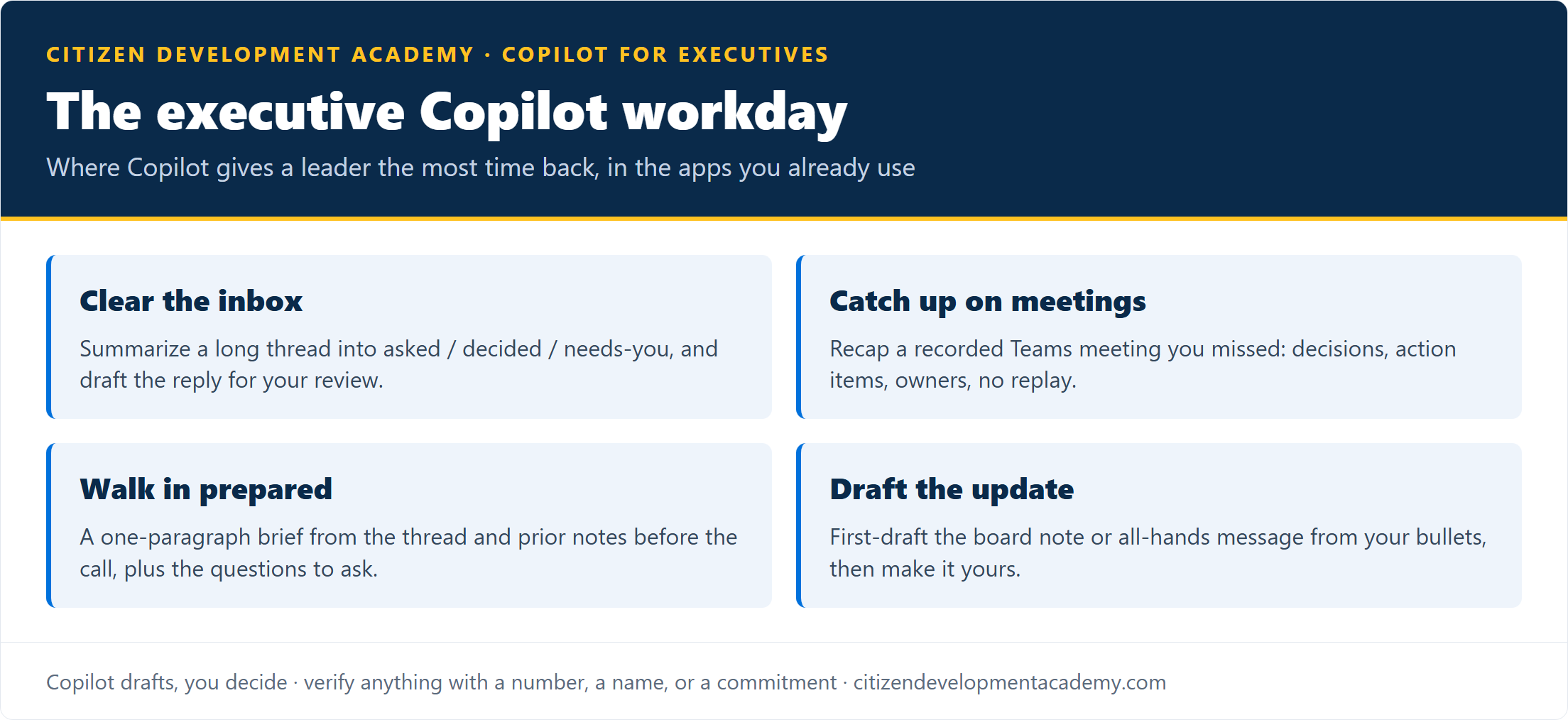
Microsoft 365 Copilot is the paid assistant inside Outlook, Teams, Word, and Excel (licensing on Microsoft Learn); everything below assumes that paid, in-tenant seat, not the free browser Copilot. For a leader, the value is concentrated in the time lost to triage and catch-up:
- Clear the inbox faster. Summarize a long or forwarded thread into what was asked, what was decided, and what needs you, and draft the reply for your review. The morning triage that eats into your day shrinks.
- Catch up on meetings you missed. For a recorded Teams meeting (where recording and transcription were on), get the recap, the decisions, and the action items without watching the replay, then jump to the part that needs you.
- Walk in prepared. Before a call, ask Copilot to brief you from the relevant thread, document, or prior meeting notes: who is in the room, what is open, what you committed to last time.
- Draft the update. First-draft the team update, the board note, or the all-hands message from your bullet points in Word or Outlook, then make it yours.
- Find the answer without the chase. Pull the number, the clause, or the prior decision out of the documents your account can open and Copilot has indexed, instead of pinging three people, and verify what it returns, since it can miss an unpermissioned file or surface a stale version.
One rule matters double for an executive: Copilot drafts, you decide. A summary can quietly miss the one caveat that changes your call, so what you forward, sign, or decide on still gets your eyes first. That discipline is the difference between a leader who looks sharper with Copilot and one who forwards a confident, wrong summary.
Five Copilot prompts worth keeping for executives
- Catch me up. “Summarize this thread in five bullets: what is being asked, what is decided, what is blocked, who owns each open item, and anything that needs me specifically.”
- What did I miss. “From this meeting recap, list the decisions made, the action items with owners and dates, and anything that affects my team or my commitments.”
- Brief me before the call. “Using this document and the prior thread, give me a one-paragraph brief and three questions I should ask, written for someone who has two minutes to prepare.”
- Draft the update. “Draft a short, plain update to my leadership team from these notes: progress, risks, decisions needed. Confident, not hype, no filler.”
- Pressure-test. “Argue the strongest case against this plan in five bullets, then note which risks are most likely and which are most damaging.”
Treat each output as a first draft you verify, especially anything with a number, a name, or a commitment in it.
The adoption gap is a leadership problem
If you came only for your own time back, you have it above; the rest is for leaders deciding for a team. The roughly two-thirds of seats that go underused (the inverse of that 36% adoption figure) are not a training-department problem; they are a leadership one. Adoption moves when the person at the top:
- visibly uses the tool,
- names the workflows that matter, and
- funds real role-based training instead of a one-off demo.
One signal of demand: a single Coursera “Microsoft 365 Copilot for Leaders” specialization had drawn roughly 10,000 enrollments as of the June 2026 check, a sign that leaders are looking for help here.
But a self-paced leadership cert does not change what your finance team or your assistants do on Monday. That takes training built around each role’s actual work, which is the gap between owning Copilot and getting the productivity you paid for.
If you are deciding for a team rather than just yourself, that is the higher-leverage move: Power Platform and Copilot training for corporate teams runs as a private cohort built around your tools and workflows. For individuals across specific roles, the Copilot training by role hub routes each person to the right program.
What executive Copilot use is, and is not
A few honest boundaries, the same ones we put on every page:
- It needs a paid seat. The in-app workflows above require a Microsoft 365 Copilot license; the free browser Copilot is a separate tool that does not carry the same enterprise data protection inside your tenant, which matters more for an executive whose inbox holds the most sensitive material in the company.
- Confidentiality is yours to set. Copilot can draw on whatever your account can open, so the access governance and the do-not-paste discipline are leadership calls, not IT afterthoughts.
- This is skills, not a credential. Using Copilot well is a skill, not a certification. If your goal is the person who administers and governs Copilot for the org, that is the AB-900 certification, a different track.
FAQ
What can Microsoft Copilot do for an executive?
Inside Microsoft 365, it covers four things: summarize long email threads and draft replies in Outlook; recap recorded Teams meetings you missed, with decisions and action items; brief you before a call from the relevant documents; and first-draft updates and board notes in Word. The leverage is the triage and catch-up time it gives back.
Is Copilot worth it for leaders specifically?
The personal time savings are real for anyone with a heavy inbox and calendar. The larger return for a leader is organizational: only about a third of licensed users actually adopt Copilot (Recon Analytics, 2026), so the executive who drives role-based training and models the behavior is the one who turns the license cost into productivity.
Does an executive need special Copilot training?
The workflows are the standard Microsoft 365 ones, so role-specific training matters more than an executive-only course. The leadership-specific part is the adoption decision: choosing which workflows matter, funding the training, and setting the confidentiality rules. For a team, private cohort training is the practical route.
Is the free Copilot enough for an executive?
No, for the work that matters. The in-app summarizing, meeting recaps, and document retrieval need a paid Microsoft 365 Copilot seat operating inside your tenant. The free browser Copilot does not carry the same enterprise data protection inside your tenant, which is a poor fit for the sensitivity of an executive’s information.
Stay in the loop
Get new posts delivered to your inbox. No spam, unsubscribe anytime.
Related articles
Copilot for IT: Governing and Deploying It Safely (2026)
Copilot for IT: why oversharing is the first job, the controls that gate it, how to pilot and measure adoption, and the governance skill to build.
Copilot for Finance Teams: Where It Fits the Function (2026)
Copilot for finance teams: the Excel, reporting, and close work it actually speeds up, why team consistency matters, and how to verify the numbers.